3. After the pay run
A finished pay run puts the PAYE and CINSF into your accounts as amounts you owe. They stay that way until you pay RMD and the CINSF fund and record the payments here. This chapter is the monthly routine, plus the checks that tell you the numbers agree.
About the screenshots
Screenshots are from Easy's demo company, Little Polynesian Café; figures are examples. The demo's last pay run (PAY-2026-0014, paid 16 October 2026) is the one finished in chapter 2. The month list on the Monthly PAYE and CINSF page stops at last month (September), so the pictures show September and that run's tax is added from November. Email is not set up in the demo, and no CINSF employer reference is entered.
What a finished run did
For each pay run, Easy recorded one balanced entry:
| Amount | Goes to |
|---|---|
| Gross pay | Wages & Salaries |
| Employer CINSF | Its expense account |
| PAYE and CINSF (employee and employer) | Payables, owed until you pay them |
| Net pay | Out of the bank |
Every finished run appears under Payroll → Pay runs.
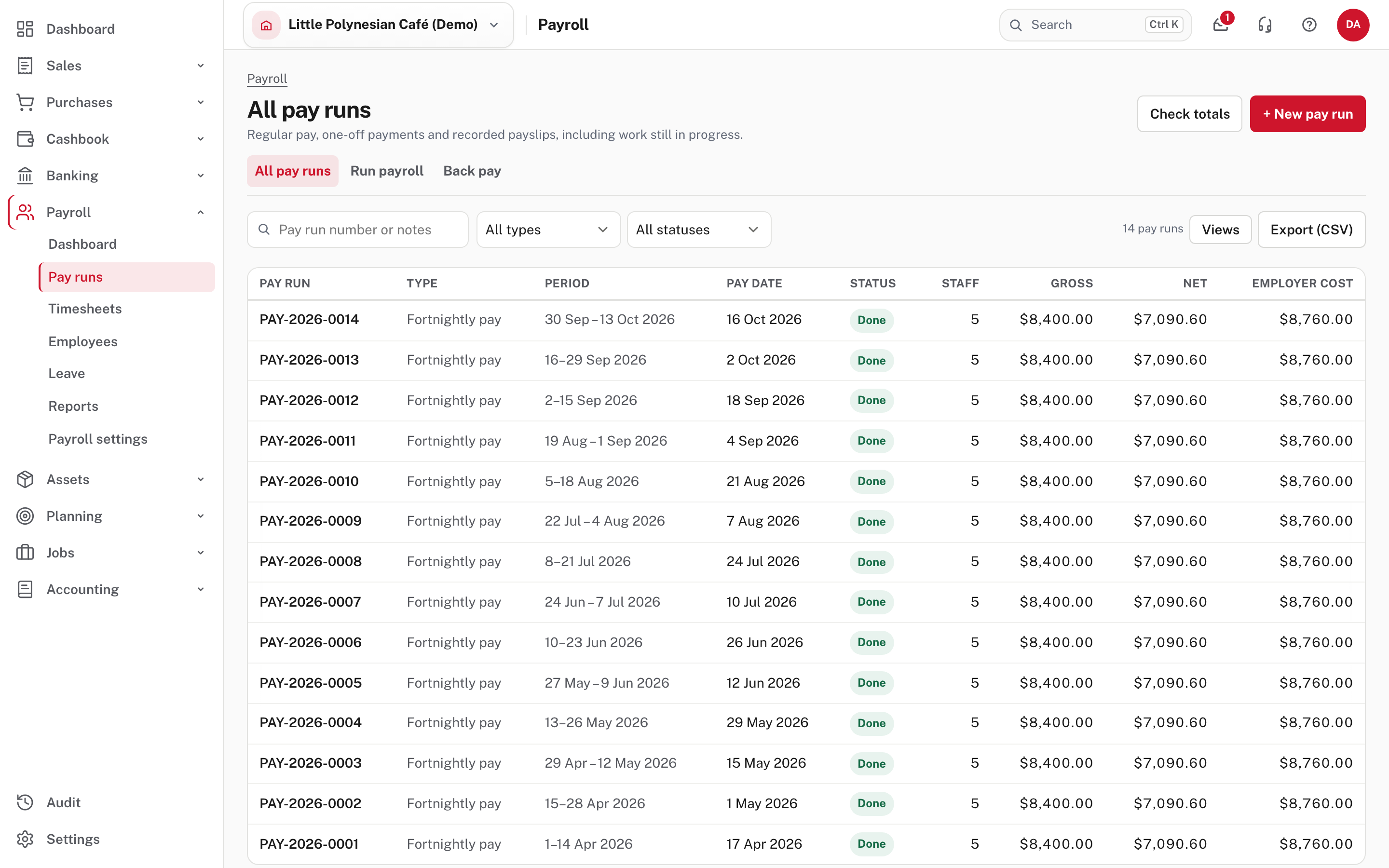
Choose a run to open its payroll record: the totals, each person's pay with a PDF of their payslip, and, at the bottom, links to see the accounting entry and to record the PAYE and CINSF payment. Bank file & payslips at the top takes you back to the run's Pay & payslips step. More on the record has the three printed reports (Pay summary, Pay detail and Bank payment schedule, see chapter 2, step 6), the downloads and Undo this pay run.
Start from the dashboard
Payroll → Dashboard.
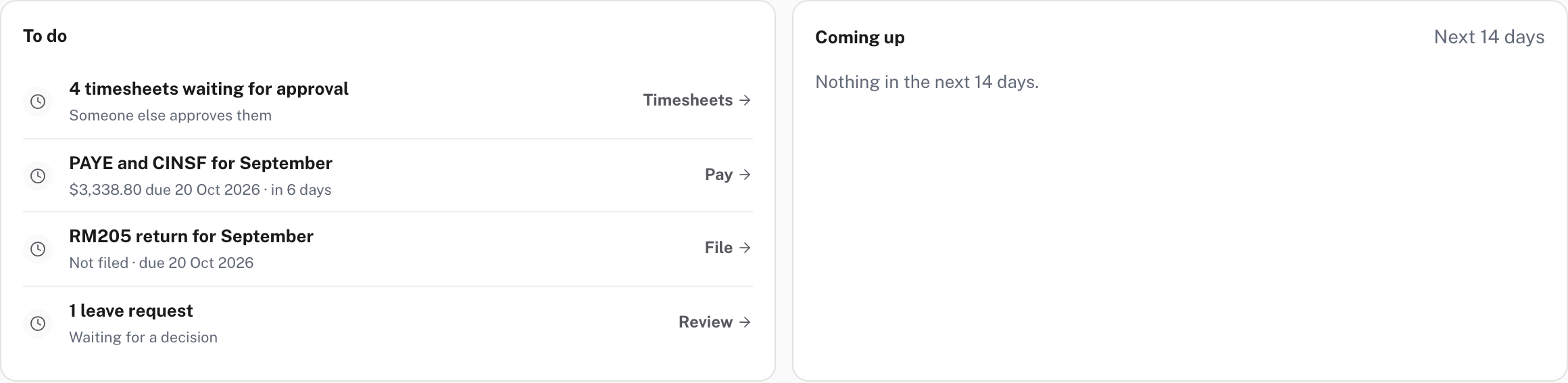
To do is the month's list, with one button for each item. After a run it shows:
- PAYE and CINSF for September: the amount still owed and its due date. Pay opens the month's payments (step 1).
- RM205 return for September: Not filed until you file it. File opens the return under Compliance (Monthly VAT and PAYE returns).
- Timesheets waiting for approval and any leave requests waiting for a decision, each with a link to the screen that clears it.
Coming up beside it shows the next fourteen days: approved leave, birthdays, work anniversaries, new starters and last days.
Above them, the Next pay run card shows the next pay date, how many days are left, the run's steps and a Run payroll button, with the Last pay run beside it. A tile on the dashboard shows the same PAYE and CINSF figure ("PAYE and CINSF due 20 Oct"), with Tax payments under it.
Step 1. Pay PAYE and CINSF each month
Payroll → Reports → Monthly PAYE and CINSF.
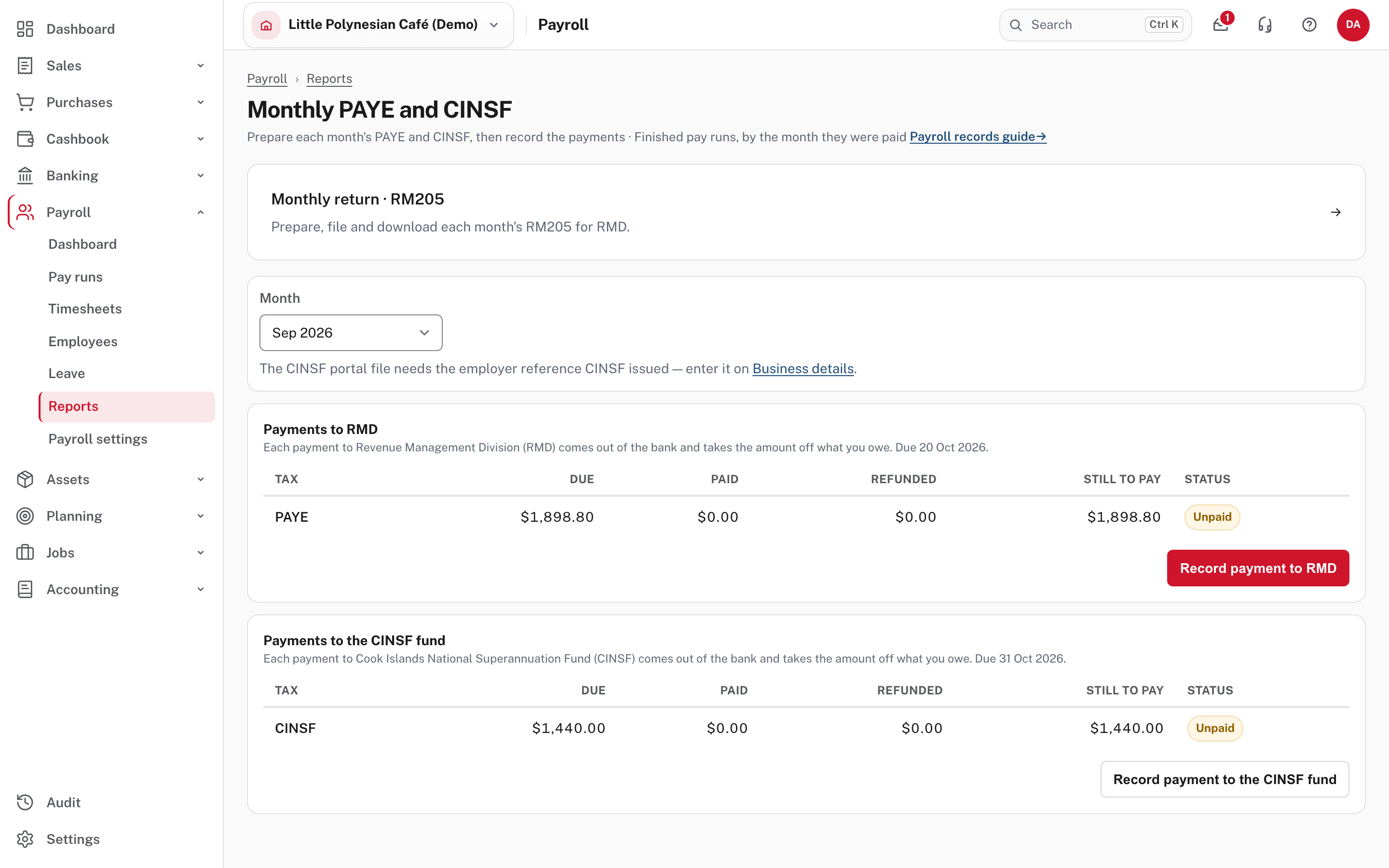
- Choose the Month. The page covers finished pay runs by the month they were paid, and the list stops at last month.
- Under Payments to RMD and Payments to the CINSF fund, read the table: Due, Paid, Refunded, Still to pay and Status (here, Unpaid). Each section says when the payment is due.
- Pay the money from your bank in the usual way, then come back and choose Record payment to RMD (or Record payment to the CINSF fund).
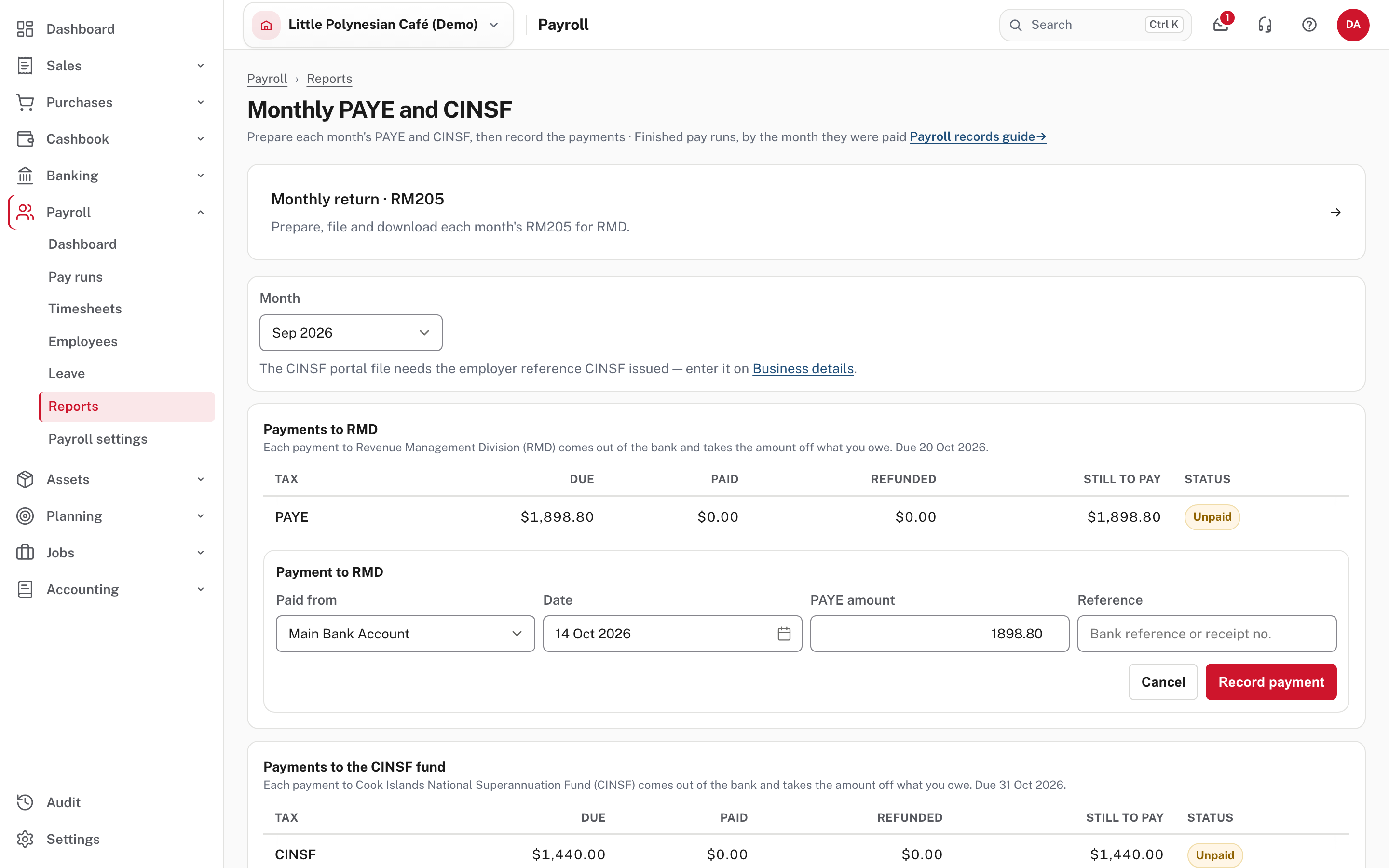
- Check Paid from (the bank account), the Date, and the PAYE amount, which is filled in with what is still owing. Add the bank's Reference or receipt number, then Record payment.
A partial payment is fine and leaves the rest still to pay. If you pay more than is owing, Easy asks first and then keeps the extra as a credit for later months. The person who runs the pays can record and cancel these payments as well as the accountant.
The link at the top of the page, VAT & PAYE return · RM205, opens the monthly return under Compliance.
The CINSF portal file
The month's file for the CINSF portal is named the way the fund expects (CINSF_<employer reference>_<month end>.CSV)
and needs the employer reference CINSF issued. Enter it once on Settings → Business details. Until you do, the
page says so, as it does here; once it is entered, Download the CINSF portal file appears beside the month.
More detail: Payroll records and reconciliation.
Check before you continue
- Still to pay for the month is $0.00 for PAYE and for CINSF, and the status is paid.
- The reference you entered matches the bank's receipt.
Step 2. Review the PAYE schedule
Payroll → Reports → PAYE schedule.
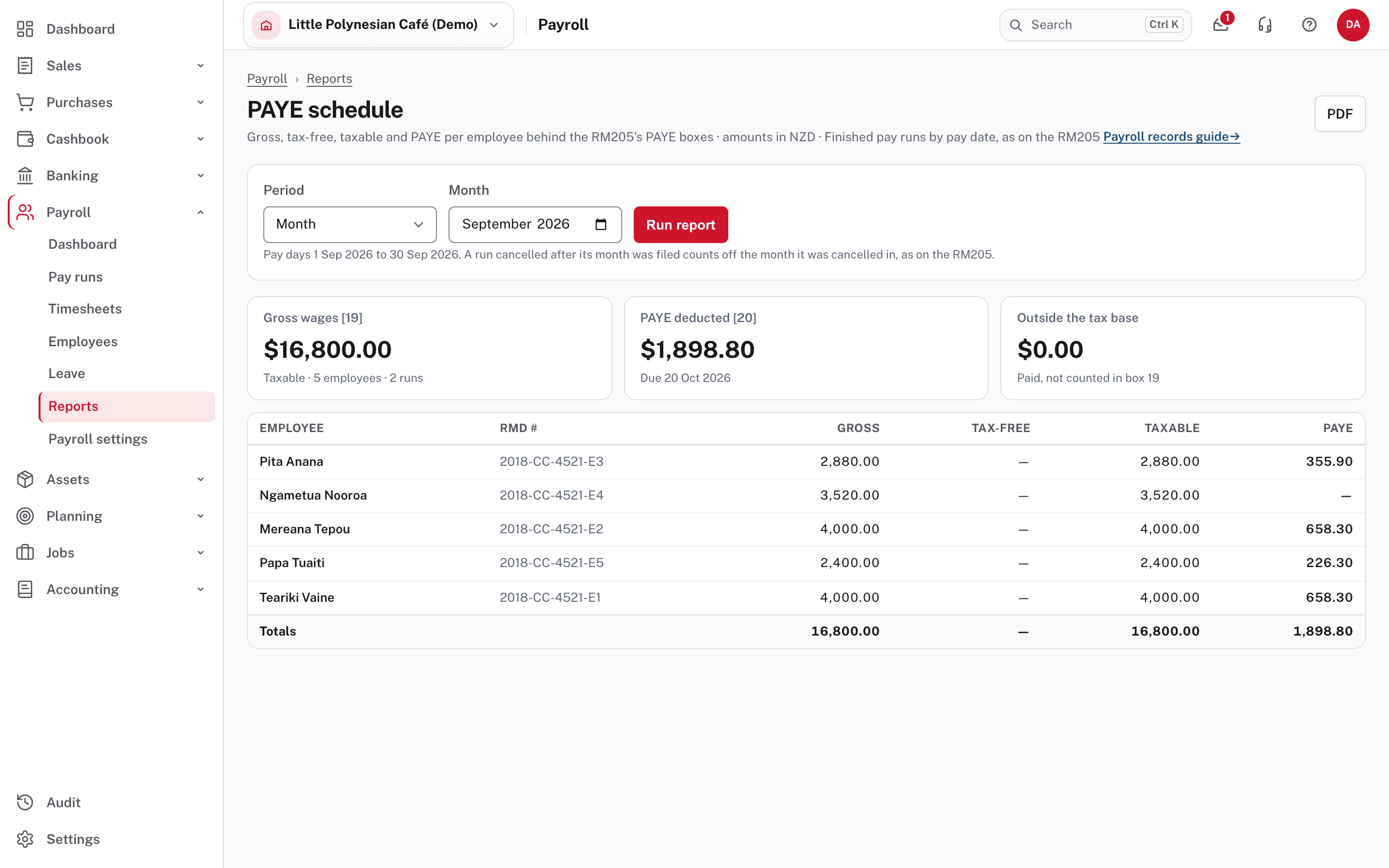
Choose the Period (Month, Quarter or Year), the month, and Run report. It lists everyone paid in the period with their gross, any part outside the tax base (Tax-free), the Taxable gross and the PAYE. The two cards above the table are the figures on the RM205 return: Gross wages [19] and PAYE deducted [20], with the date the PAYE is due, and a third card shows what was Outside the tax base. PDF (top right) saves the schedule. Check the cards against the return before you file it (VAT & PAYE return · RM205, under Compliance).
Step 3. Check the payroll totals
Payroll → Reports → Check payroll totals (or Check totals on the Pay runs list).
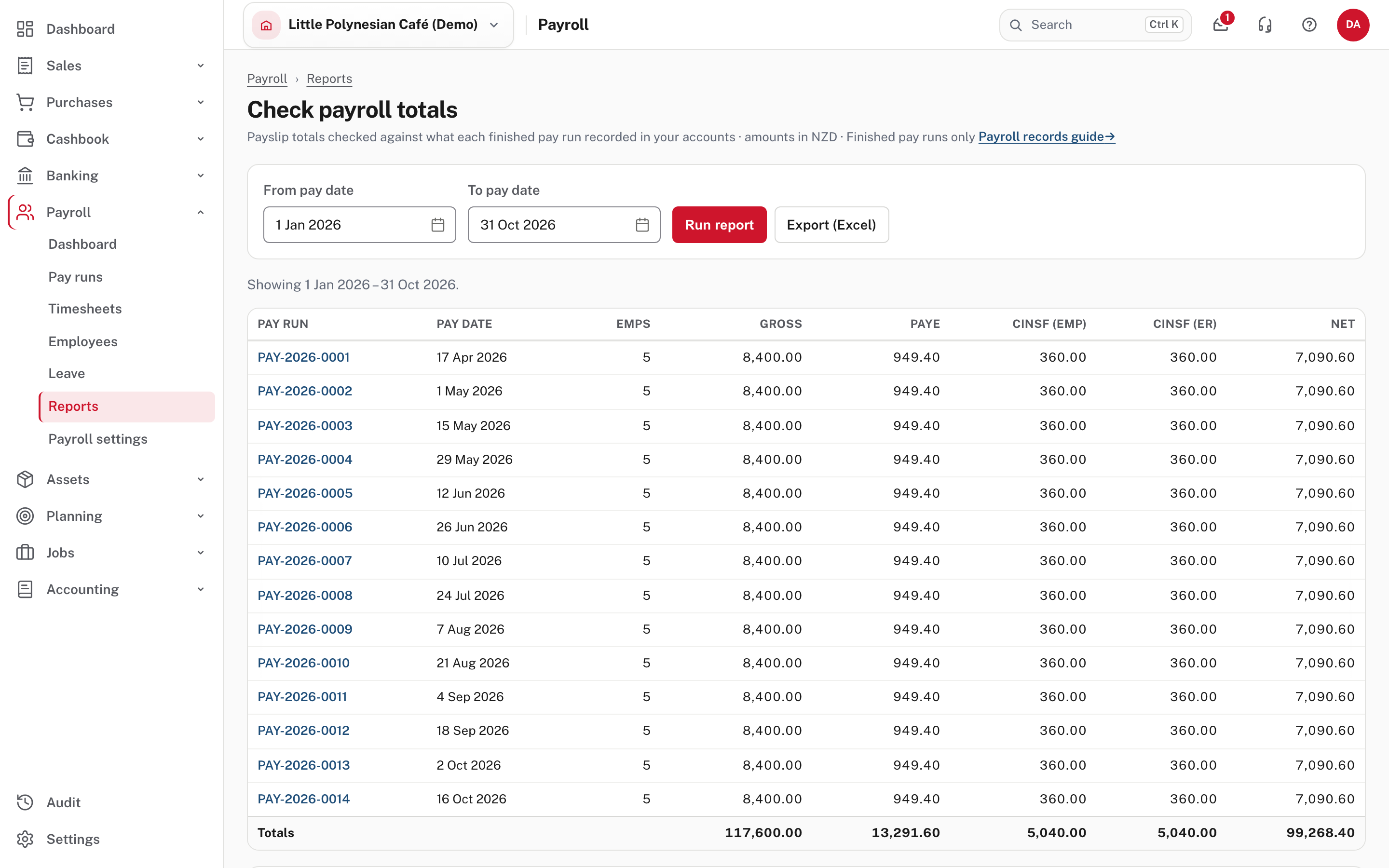
Choose a date range and Run report. The table lists each finished pay run with its totals. Lower on the page, the GL tie-out compares the payroll journals in your accounts with the payslips.
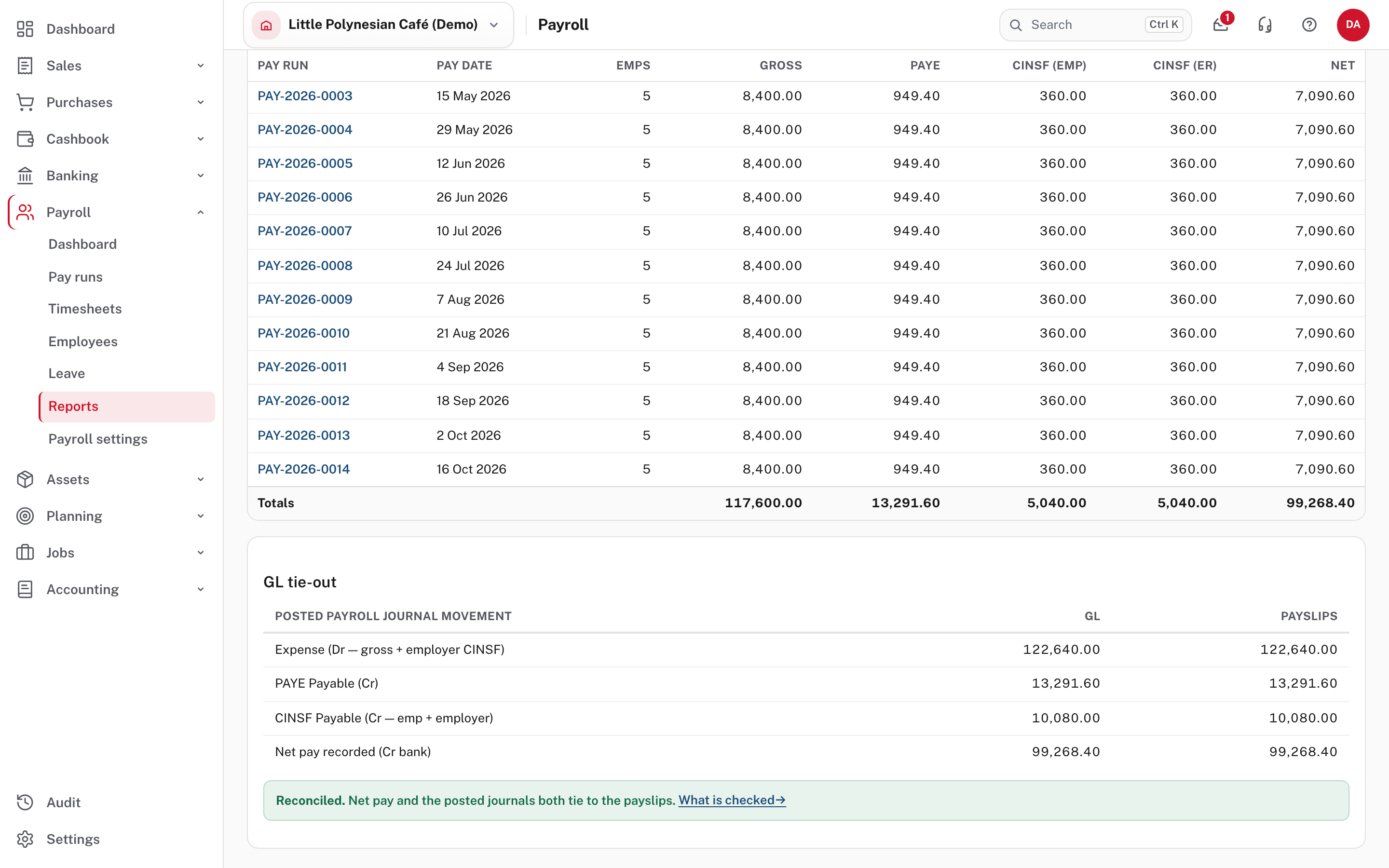
The result under the tie-out reads Reconciled when both of these are true:
- Net pay equals gross pay minus PAYE, employee CINSF and other deductions.
- The accounting entries of the finished pay runs match the payslip totals.
Otherwise it reads Out of balance and says which one doesn't hold. Run this at least once a month, after the pay runs and before the return.
Step 4. Find a report when you need one
Payroll → Reports groups what is there.
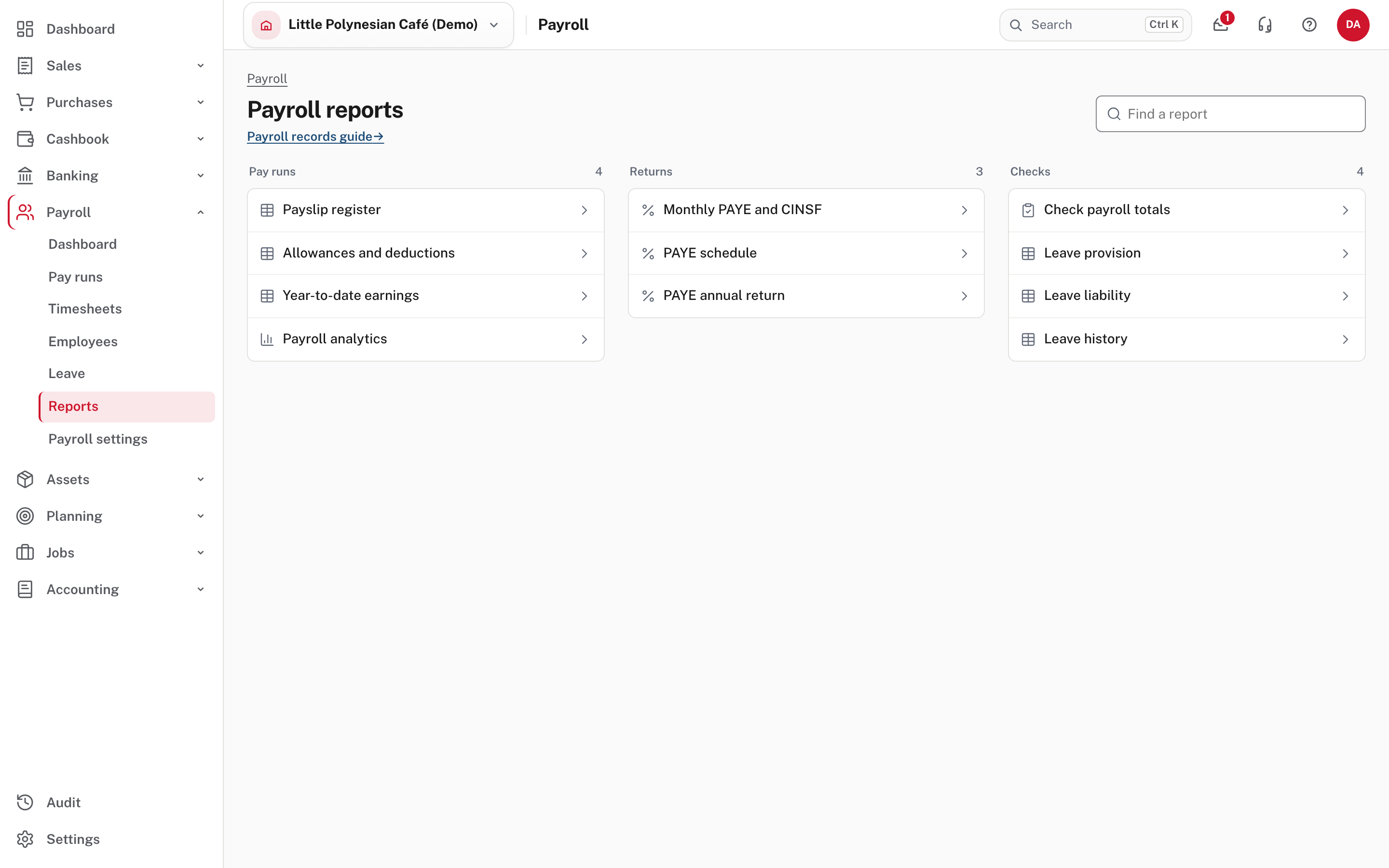
- Pay runs: the payslip register, allowances and deductions, year-to-date earnings, and payroll analytics.
- Returns: monthly PAYE and CINSF, the PAYE schedule, and the annual PAYE return.
- Checks: payroll totals, leave provision, leave liability and leave history.
The printed reports for a single pay run (pay summary, pay detail and the bank payment schedule) are on the run itself, not here (chapter 2, step 6).
Once you reconcile the bank account, a finished run also shows the day the bank paid it.
Step 5. Record the leave provision (if your accountant wants it)
Payroll → Reports → Leave provision, or Review leave provision on the Finish step of a finished pay run.
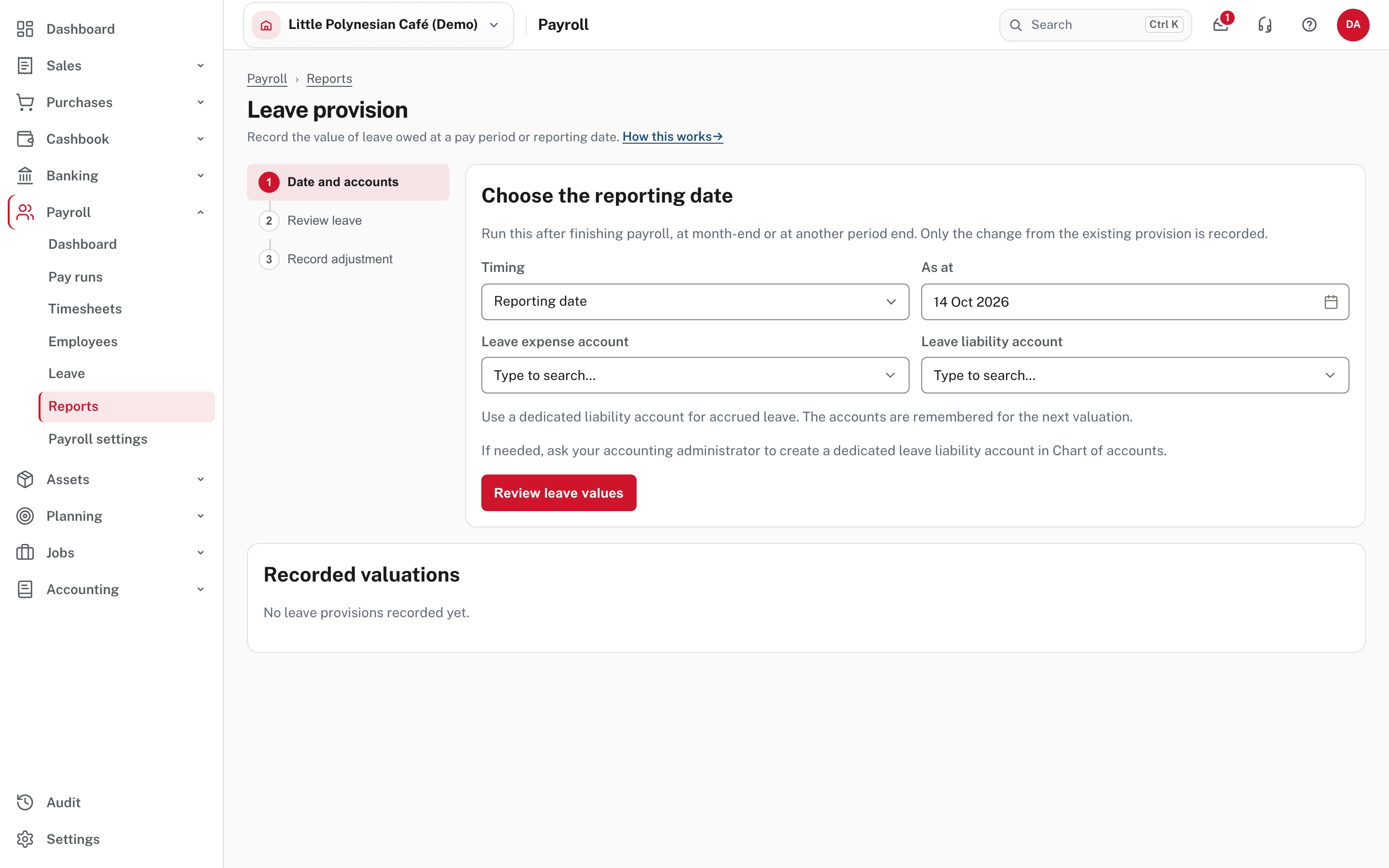
The leave provision records, in your accounts, the value of leave owed to staff at a pay period, a month end or another date. It is a three-step screen: Date and accounts, Review leave, Record adjustment.
- Choose the timing and date, the Leave expense account and a dedicated Leave liability account, then Review leave values. The accounts are remembered for next time.
- Review each employee's leave hours and value, add a note, and confirm.
- Preview the adjustment, then record it. Only the change from the provision already recorded is booked: an increase debits leave expense and credits accrued leave, and a decrease does the opposite. Employees' leave hours and payslips do not change.
Recorded valuations, below, lists each one recorded. (Not shown in the demo: the demo has no dedicated leave liability account, so the page asks for one to be created in the chart of accounts, and nothing was recorded. The steps are from Easy's Help.)
More detail: Leave provision.
Later in the year
- Annual PAYE reconciliation (RM106). The January to December grid is built from your finished pay runs and checked against the per-employee RM101 totals. Any variance is flagged for a written explanation.
- RM101 for a leaver. Once an employee has a termination date, their record shows the delivery deadline, seven days after the last day. Record actual delivery with its date and evidence reference.
More detail: Payroll records and reconciliation.
Check at the end of the month
Month-end payroll checklist
- Every pay run for the month is Done, with its bank file uploaded and payslips out.
- PAYE and CINSF for the month are recorded as paid, with references.
- Check payroll totals says Reconciled for the month.
- The PAYE schedule totals agree with the RM205 boxes before you file.
- If your accountant wants leave owed in the accounts, the leave provision is recorded for the month end.